

 Gadronics
 Estimated reading time: 7 minutes
Get your Amazon delivery updates to appear on your Echo Show
Amazon’s Alexa has many features and functions. From the basics like telling you the weather, to helping you control the smart devices in your home. As one might expect however, Amazon’s assistant is also capable of letting you know where your Amazon orders are, and what is in your basket.
For those with an Echo Show, Alexa can display your Amazon order’s on the Show’s screen, whether you have the larger Echo Show 15 or 21, or the smaller Echo Show models.
That might be something you want, but it also might be something you want to turn off. We’re giving you a step-by-step on how to setup Alexa to display Amazon orders, as well as how to make sure the titles of products are or aren’t shown, depending on your preferences, but you can follow the same steps to turn this feature off.
What you’ll need
- Your smartphone or tablet
- Amazon Echo Show device
- The Alexa app
The short version
- Open your Echo Show menu by swiping down from the top.
- Tap on Settings.
- Scroll down to select Home and Clock.
- Tap on Home Content.
- Toggle on/off Your Deliveries.
- Toggle on/off Rotate Continuously.
If you’re anything like us, you might feel like you’re keeping Amazon in business. Whether you’ve tapped order on a last minute gift, something you needed or wanted for yourself, or you’ve realised you’re running low on pet food and Amazon is more convenient than driving to the pet shop, the orders soon rack up.
Setting Alexa to display your upcoming Amazon orders is helpful for keeping track of them easily – and more user friendly than the Amazon app for checking an order status. It helps you know when something might be arriving so you can stay in for it, or make sure you check the place you normally get your Amazon deliveries put if you aren’t home. You may also rather this information wasn’t shown however, and if that’s the case, we have you covered too.
It’s worth noting, you can also change the preferences within the Alexa app to show or not show the titles of products you have ordered, and you can also change this preference specifically for items marked as gifts too, which is handy. Depending on what you choose, you can ensure everyone in your home sees what lovely presents you’ve bought them, or just what is coming, enabling you to distinguish more easily between the orders you’ve placed. We’ll go through both below.
Time needed: 5 minutes
- Access your Echo Show menu
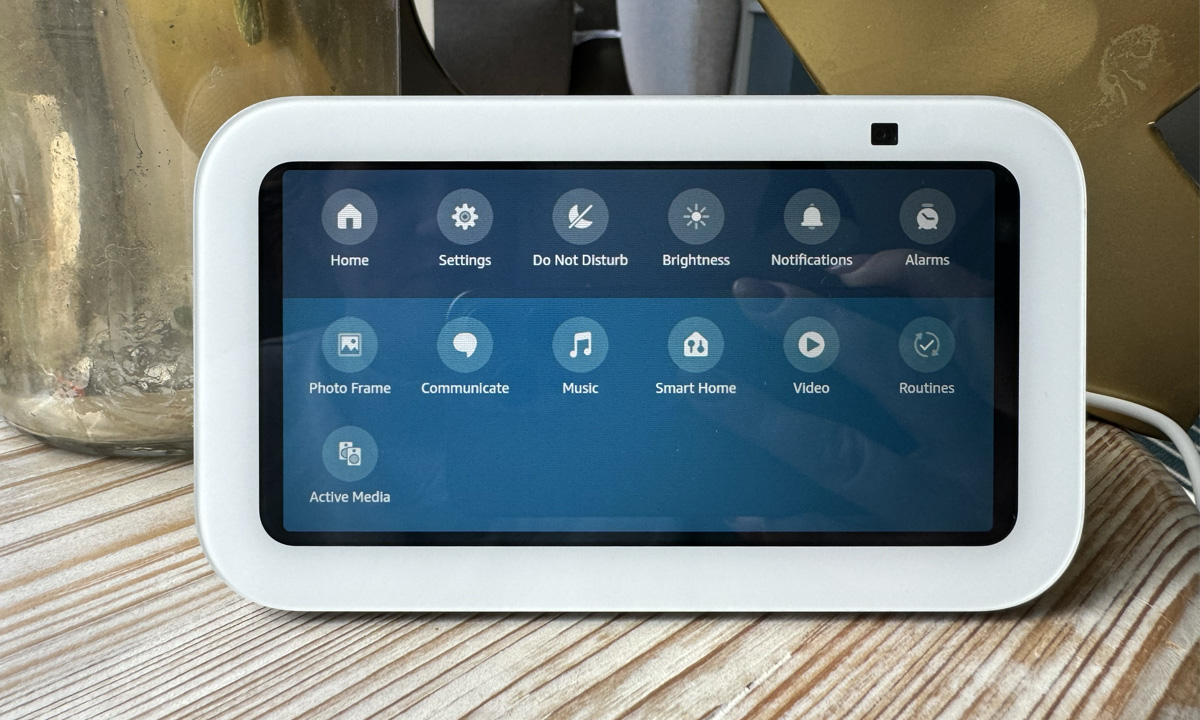
Swipe down from the top of your Echo Show to access its menu. You’ll want to tap on Settings once you have opened the menu.
- Open the Home and Clock Settings
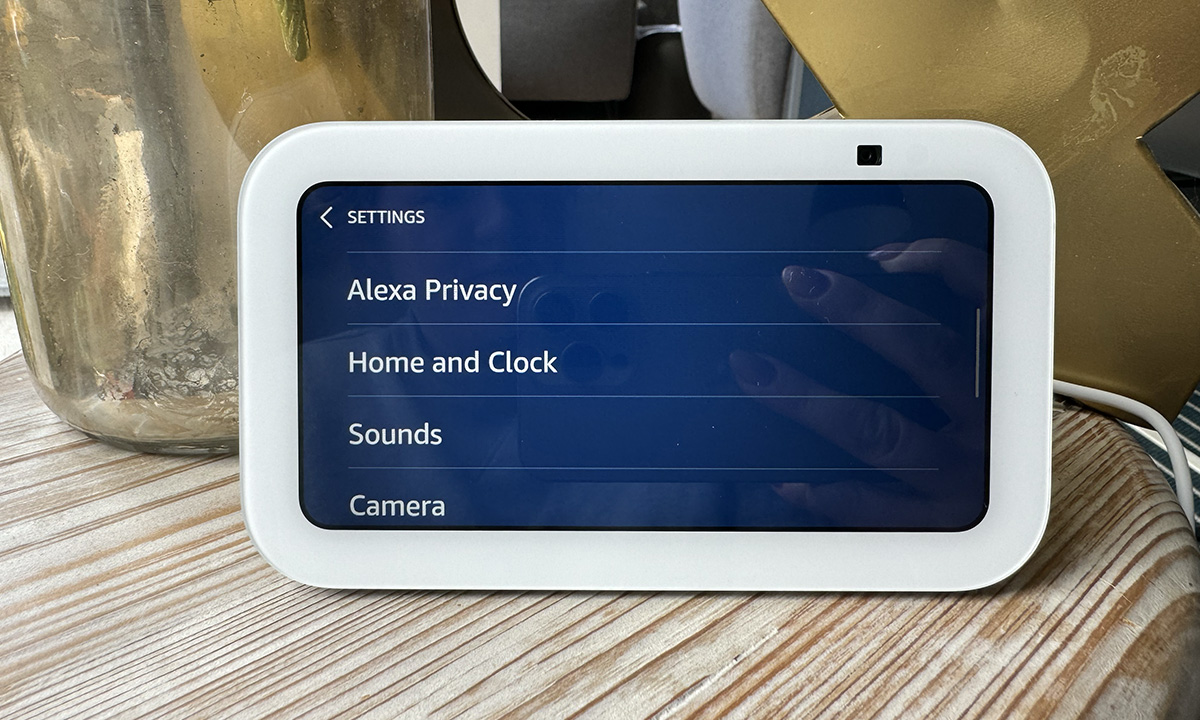
From the Settings on your Echo Show, you’ll need to scroll down to Home and Clock within the menu. It’s there, we promise. You just have to scroll through a couple of Show screens to get to it.
- Find Your Deliveries
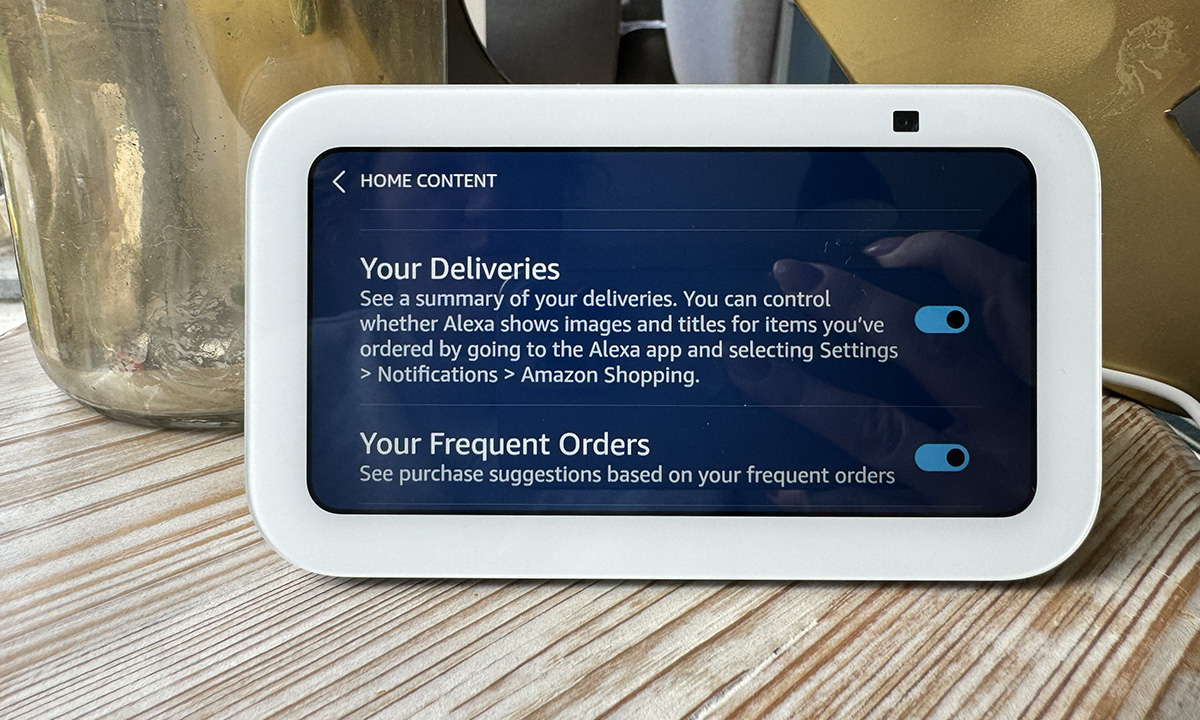
When you’re in the Home and Clock settings, you’ll see a tab for Home Content. Tap on that and an entire new menu will appear. From here, it’s time to get your scrolling finger ready again as you’ll need to find the Your Deliveries option, which is towards the bottom – it’s organised alphabetically. Make sure this is toggled on if you want to see your orders appear on Echo Show, or off if you want to turn off deliveries appearing on Echo Show.
- Turn on Rotation
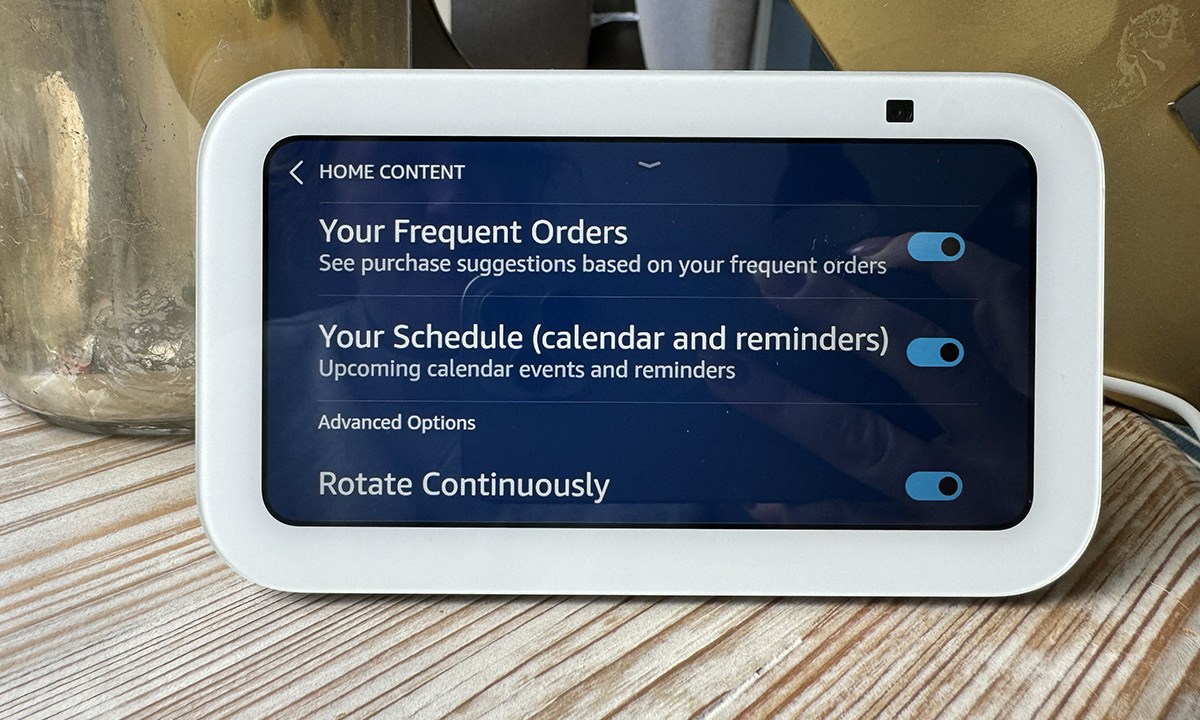
If you’ve turned deliveries on, you will want to make sure they rotate regularly on your Echo Show so you see them more frequently. You can also toggle off anything you don’t use within the rotation to see your deliveries appear more.
Rotation is in the same Home Content settings as the Your Deliveries, right at the bottom. Toggle that on and Your Deliveries will show up on the Echo Show screen more.
- Open up settings on the Alexa app
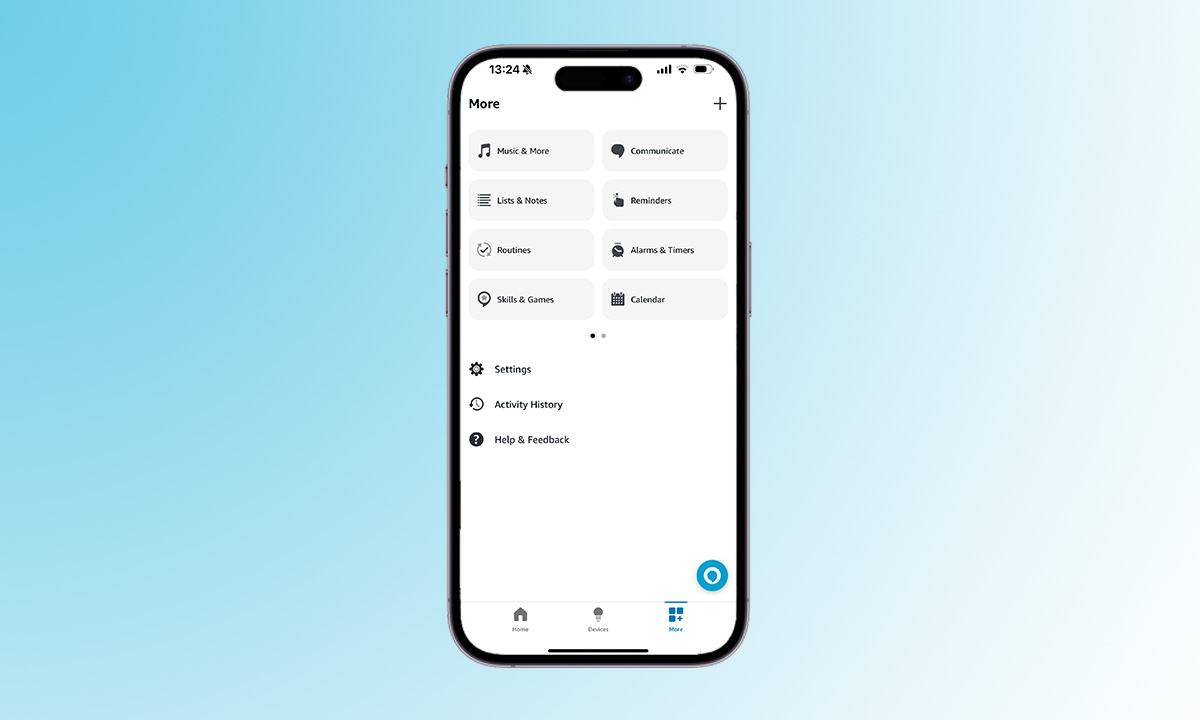
If you want the titles of the products within your order to appear, you’ll need to open the Alexa app on your phone or tablet and head to settings. This is in the More tab in the bottom right corner.
- Head to Amazon Shopping
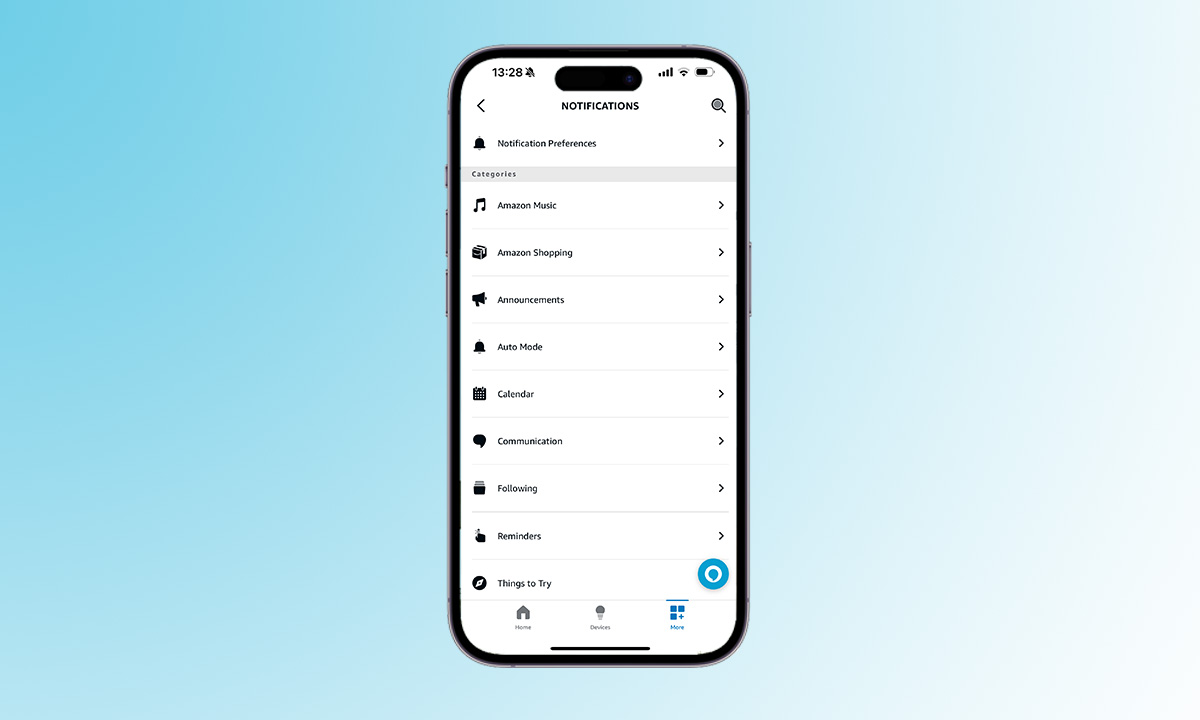
Once you’ve opened settings, head to Notifications in the menu and tap on Amazon Shopping under the categories section.
- Choose your titles preferences
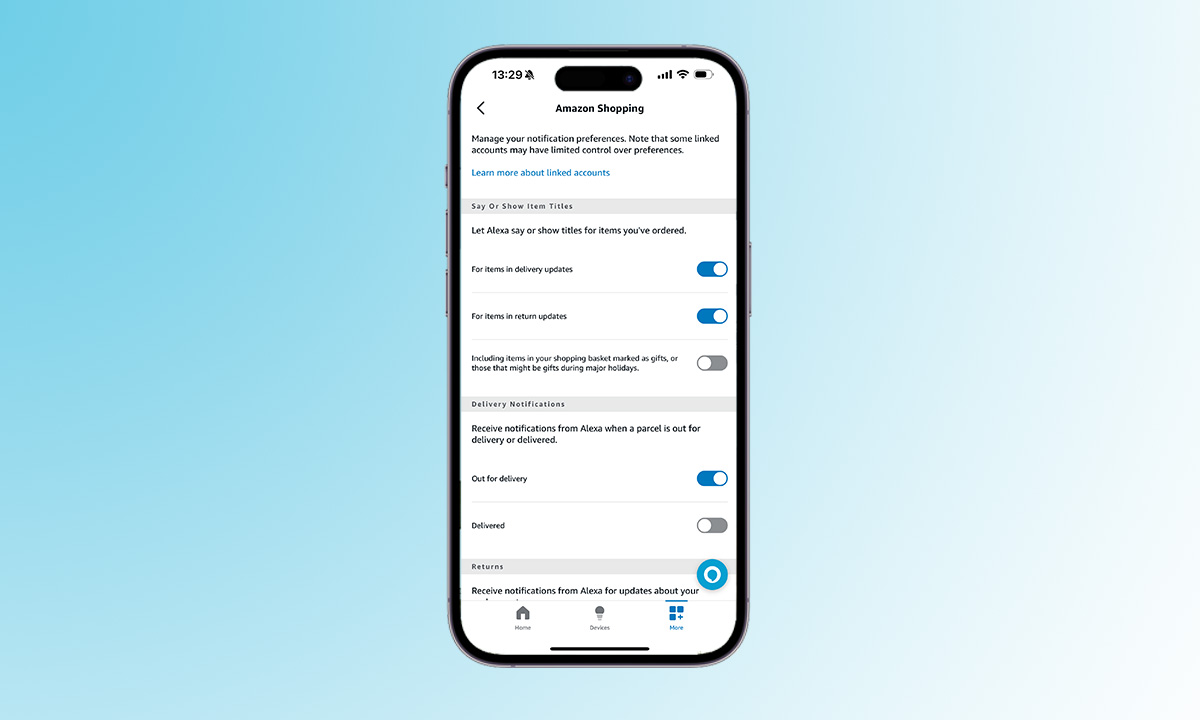
There is a section that appears immediately with the Amazon Shopping section called ‘Say or Show Item Titles’. Within this section, you can toggle on or off various settings. Your options include For items in delivery updates, For items in return updates and Including items in your shopping basket marked as gifts, or those that might be gifts during major holidays.
That’s it. You’re all set. Your Echo Show will now show any Amazon orders you have upcoming, and it will also show you the titles of your items if you have chosen those settings above.
FAQs
If you have multiple Echo Show devices, they will all display the same upcoming Amazon orders as long as the Your Deliveries option is toggled on for each device.
Displaying Amazon orders on the Echo Show is a user-controlled feature. You can customize the settings based on your preferences, including whether to show item titles or not, ensuring your privacy and preferences are respected.
Yes, the Alexa app allows you to customize preferences separately for regular orders and items marked as gifts. You can choose whether to display titles for both or only one of these categories.
By default, enabling the Your Deliveries option in Home Content settings on your Echo Show will display all upcoming Amazon orders. However, you have the option to customize the rotation and toggle off specific items within the rotation settings.



